

A unified visual communication tool that combines file hosting with screen recording, best for teams that need to share diverse assets beyond just video.
Excellent for high-speed asset sharing and quick feedback loops, weaker for long-form video hosting or complex video editing.
Analysis based on product data, pricing structure, traffic signals, and public user sentiment.
Who Should Use Jumpshare?
Typical users
Designers, developers, and customer support teams in small to mid-sized agencies who frequently share screenshots, videos, and design files.
Maturity fit
beginner to scaling
Choose this if…
- You want a single tool for screenshots, screen recording, and file hosting
- Your workflow involves sharing non-video files like PSDs, Sketch, or PDFs that need instant previews
- You prioritize speed of capture and upload over advanced video post-production
Skip this if…
- You need advanced video editing features like stitching clips or adding transitions
- You require a dedicated video hosting platform with deep marketing analytics
- You are on a Windows machine and require 100% stability, as the Mac app is significantly more polished
About Jumpshare
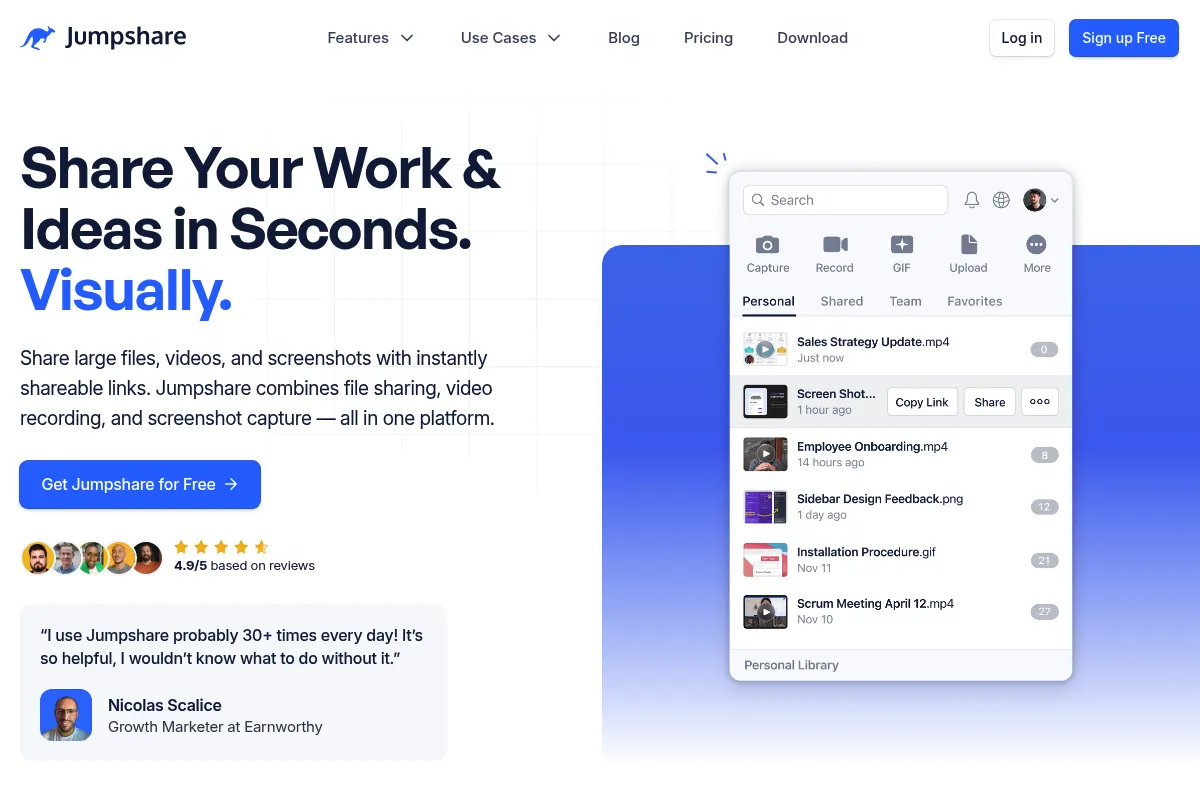
Jumpshare is a productivity tool that lives in the system tray to facilitate rapid visual sharing. It was built to eliminate the friction of using separate apps for capturing screens and hosting files, providing a centralized workspace for all shared media.
Official profiles
What it actually does
It captures screen recordings (video/GIF) and screenshots with annotation tools, then automatically uploads them to generate a shareable link. It also functions as a cloud storage service that supports instant browser previews for over 200 different file formats.
What makes it different
Unlike video-centric competitors like Loom, Jumpshare treats files, images, and videos as equal citizens. Its standout feature is the built-in file viewer, which allows recipients to view complex files like CAD drawings or Photoshop documents directly in the browser without downloading them.
Ratings across the web

Ratings aggregated from independent review platforms.
Key Features
System Tray Integration
Enables instant capture and upload without opening a browser window.
AI Summarization
Automatically generates titles and bulleted summaries for recordings to save viewer time.
Universal File Preview
Displays high-fidelity previews of design, code, and document files in the recipient's browser.
Timed Expiration
Allows users to set links to expire after a specific time or number of views for sensitive data.
In-Video Comments
Facilitates timestamped feedback directly on the video timeline for precise collaboration.
Version Control
Keeps track of file iterations under a single link to ensure recipients always see the latest version.
Custom Call-to-Action
Adds clickable buttons to the end of videos to drive viewers toward a specific next step.
Pricing
Free
- 2GB total storage
- 30-second recording limit
- 250MB file upload limit
- Basic file sharing
Plus
- 1TB total storage
- Unlimited recording time
- 20GB file upload limit
- Custom branding
- Password protection
Business
- 2TB total storage per user
- Team library and roles
- Custom domain support
- SSO and advanced security
- Priority support
Pricing checked 6 months ago
Pricing guidance
- When you need to record videos longer than 30 seconds
- When you need to remove Jumpshare branding for client work
- When you exceed the 2GB storage limit
- The 250MB file limit on the free plan applies to all file types, not just video.
- Analytics data is limited on the Plus plan compared to Business.
Competitive pricing that undercuts Loom's business tier while offering significantly more storage for general files.
Pros & Cons
Strengths
-
Consolidated workflow
Replacing separate subscriptions for screen recording and file sharing reduces software spend and simplifies the team's tool stack.
-
Superior file previewing
The ability to view professional file formats (PSD, AI, Sketch) without the native software is a major advantage for client-facing roles.
-
High-speed uploads
The background upload process is optimized for speed, often providing a shareable link before the recording is even finished.
Weaknesses
-
Limited video editing
You can only trim the start and end of videos; there is no ability to cut out middle sections or merge multiple recordings.
Affects: Content creators and educators
-
Windows app performance
User reports frequently cite the Windows version as being less stable and more prone to sync errors than the macOS version.
Affects: Windows-based teams
-
Restrictive free tier
The 30-second recording limit on the free plan makes it almost useless for anything other than the shortest bug reports.
Affects: Solo users and hobbyists
Real User Sentiment
Users generally appreciate the speed and the 'all-in-one' nature of the tool, though Windows users express more frustration than Mac users.
Users tend to like
- The clean, minimalist UI
- Speed of generating shareable links
- The ability to preview almost any file type
- AI transcription accuracy
Users commonly complain about
- Occasional crashes on the Windows desktop app
- Lack of advanced video editing
- The 30-second limit on the free version
Recurring tradeoffs
- You trade deep video editing features for a faster, broader file-sharing workflow.
Happiest users
Designers and developers who need to share a mix of code snippets, screenshots, and quick video walkthroughs.
Often frustrated
Windows users who rely on the desktop app for high-volume daily tasks and encounter sync bugs.
Use Cases
Design Handoff
Sharing a high-res design file alongside a video explaining the UX logic.
Bug Reporting
Capturing a screen recording of a technical glitch and sharing the link directly in a Jira ticket.
Client Feedback
Sending a screenshot of a draft with annotations to point out specific required changes.
Sales Outreach
Recording a personalized video pitch with a custom CTA button at the end.
Internal Documentation
Creating a library of quick 'how-to' videos for onboarding new employees.
Frequently Asked Questions
How does Jumpshare compare to Loom?
Loom is a video-first platform with better video editing (like 'stitch' and 'filler word removal'). Jumpshare is a visual communication platform that handles videos, screenshots, and 200+ file formats. Choose Jumpshare if you need to share more than just video; choose Loom if you only care about polished video messages.
Is the Jumpshare free plan actually usable?
Only for very brief tasks. The 30-second recording limit is the primary restriction. If your videos are longer than a quick 'hello' or a simple bug highlight, you will need to upgrade to the Plus plan for $9.99/month.
Can I use my own domain with Jumpshare?
Yes, but only on the Business plan ($12.50/user/month). This allows you to share links like 'share.yourcompany.com' instead of 'jumpshare.com', which is better for professional branding.
Does Jumpshare work offline?
You can capture screenshots and recordings while offline, but they will not be shareable until you reconnect to the internet and the app completes the upload to the cloud.
What file formats can Jumpshare preview?
It supports over 200 formats, including major design files (PSD, AI, Sketch), code files (HTML, CSS, PHP), documents (PDF, DOCX), and even 3D files (STL, OBJ).
Does Jumpshare integrate with Slack?
Yes, Jumpshare has a Slack integration that unfurls links to show rich previews of videos and images directly within your Slack channels.
Why trust this page?
This evaluation combines product positioning, pricing analysis, traffic and market signals, and public user sentiment into a single decision-support page. Content is generated editorially — not copied from the vendor's website.
Funding & Company
Founded
2011
Stage
Bootstrapped
Total Raised
Bootstrapped
Latest Round
—
Jumpshare is a bootstrapped company and has not raised any external funding. Its longevity since its founding in 2011 indicates a sustainable business model built on product revenue rather than venture capital, suggesting stability and a focus on profitability.
Market Signals & Traffic
Estimated visits, global rank, geography, traffic sources, monthly visit trends, and organic search keywords (Similarweb)—on a dedicated page built for depth and search.
- Estimated visits
- 1,908,038
- Global rank
- #30,010
- Snapshot
- Apr 2026
- Traffic trend
- Rising
Estimated monthly visits
Similar Tools
Claude
AI Assistant

A conversational AI assistant for writing, analysis, coding, and more.
Plaud NotePin
AI Assistant, Productivity, Documentation

Voice recorder for transcribing and summarizing meetings and calls.
Yoodli
Communication, Training & Onboarding, Education

Communication coach for public speaking and interview preparation.
Weights & Biases (W&B)
Developer Tools, Research

Developer platform for tracking, visualizing, and managing machine learning experiments.
Guideless
Video Creation, Documentation, Training & Onboarding

An AI-powered tool that turns browser workflows into polished, narrated video guides in minutes.
Warp
Developer Tools, Productivity, Workflow

Modern Rust-based terminal with command search and team collaboration