
Your Guide to the Google Voice Automated Attendant in 2026

Matic Pogladič
01 April 2026
Does Google Voice have an automated attendant? Yes, it does, and it functions as a powerful digital receptionist for businesses using Google Workspace. This feature answers every call professionally and routes it to the right person, department, or voicemail based on your custom rules. It is a critical tool for growth.
Think of the automated attendant as your company's virtual front desk. It projects a bigger, more established image for your business. It's a classic case of looking the part to become the part. This functionality is essential for founders who need to look professional and operate efficiently from day one. I've been there. Juggling business calls on my personal cell phone during the early days of my first company was pure chaos. We missed calls, dropped leads, and delivered a choppy experience to our first customers. An automated attendant is the clean, simple fix for that exact problem.

Present a Professional Image 24/7
The real power here is consistency. Every single call gets the same polished, on-brand greeting, whether it arrives during a hectic Tuesday afternoon or at 2 AM on a Sunday. That kind of reliability builds immediate trust. It makes your business feel solid.
For any team already running on Google Workspace, layering in Google Voice is a natural next step. The integration is baked right in, providing a surprisingly robust phone system without the headache and high cost of a traditional PBX setup.
Accessible and Cost-Effective Call Management
Since becoming part of Google Workspace, the Voice automated attendant has become the go-to for startups needing a professional phone presence without a big budget. It is available with the Google Voice Standard and Premier subscriptions. It gives you the power to set up custom menus. The classic "Press 1 for sales, press 2 for support."
This simple feature ensures your calls are always routed correctly. Even when nobody's in the office.
To give you a quick overview, here is a breakdown of what the Google Voice Automated Attendant offers.
Google Voice Automated Attendant at a Glance
| Feature | Description | Benefit for SMBs |
|---|---|---|
| Custom Call Menus | Create menus with up to 10 options (e.g., "Press 1 for Sales"). | Guides callers to the right person or department, saving time and reducing frustration. |
| Business Hours & Routing | Set specific hours and define how calls are handled after hours. | Ensures a professional response 24/7, routing to voicemail or another number. |
| Text-to-Speech & Audio | Use a standard voice or upload your own custom audio recordings. | Allows for brand consistency and a more personal touch in your greetings. |
| Google Workspace Integration | Natively works with Google Calendar, Meet, and user accounts. | Simplifies management by keeping everything within a single, familiar ecosystem. |
| Affordable Pricing | Included with Voice Standard and Premier plans (starts around $20/user/month). | Provides enterprise-level phone features at a fraction of the cost of legacy systems. |
This table shows just how much functionality you get for a relatively small investment. It is a system designed to scale with you. If you are building out your company's toolkit, we also have a curated list of other powerful tools for small business that pair well with the Google ecosystem.
My honest advice? Keep your menu simple. It is tempting to create a complex phone tree with six different options, but it just leads to caller fatigue. A straightforward "Press 1 for Sales, Press 2 for Support" gets people where they need to go faster. In my experience, simplicity always wins.
Get Your House in Order: Google Workspace Prerequisites
Before you can build your new digital receptionist, you must ensure the foundation is solid. I have seen far too many businesses hit a wall here, assuming the Google Voice automated attendant is a standard feature on any plan. It is not. You need the right licensing first.
To be clear, you must have an active Google Workspace subscription paired with the correct Google Voice license. The auto attendant is only available on the Standard and Premier tiers for Google Voice for Business. If you are on the Starter plan, you will need to upgrade.
Confirming Your Google Workspace and Voice Plans
This is a quick but absolutely critical check. I once had a client spend a full afternoon trying to find a feature their plan did not include. A five minute check can save you hours of frustration.
To see what you have, you will need to pop into the Google Admin console. As an administrator, log in at admin.google.com. From there, head over to the Billing section and click into your Subscriptions.
You are looking for two things. Your Google Workspace plan and your Google Voice plan. Make sure your Google Voice license is listed as either Standard or Premier. If you see Starter, that is your cue to upgrade before you go any further.
One of the most common misconceptions I run into is that Google Voice for Business can be bought on its own. It is an add-on to Google Workspace, not a standalone product. This often catches founders by surprise if they are not already using the Google ecosystem.
Activating Your First Auto Attendant
With your licensing confirmed, you can get down to business. You will activate your first auto attendant right from that same Admin console. This is more than just flipping a switch. Your first few choices here will define how calls flow into your business.
Navigate your way to Apps > Google Workspace > Google Voice. Once you are inside the Google Voice settings, find the "Auto attendants" menu. This is your new command center.
When you create a new attendant, the first thing it will ask is for a phone number. You have got two options:
- Assign a new number from Google’s available pool.
- Port an existing business number to keep your current line.
Porting a number takes a little more coordination, but it is essential for maintaining consistency for your customers. Once a number is tied to the attendant, the system will drop you into the main configuration screen.
From here, you will set up call menus and routing rules, which we will explore next. Properly connecting these systems is crucial. You can learn more about how different platforms connect by exploring various integration tools and strategies.
Designing Your Call Menu and Greetings
Once the technical side is sorted, we get to the part that directly shapes your customer's experience. Your call menu is the first real interaction someone has with your business over the phone. It can be a helpful guide. Or a frustrating digital maze.
My most important piece of advice, learned from setting this up for countless businesses, is to fight the urge to overcomplicate things. Fewer options are always better. When callers are faced with more than three or four choices, they get decision fatigue. They tune out, get frustrated, and are more likely to hang up. Keep it simple and direct.
The most effective menus I have ever built were the shortest. A simple "Press 1 for Sales, Press 2 for Support" is far more effective than a complex tree trying to cover every single possibility. Your goal is to route the call, not quiz the caller.
Crafting Your Greeting Scripts
Your welcome greeting is your brand’s voice, literally. Before you write a single word, you have to decide on the personality you want to project. Are you a formal, buttoned-up firm? Or a friendly, approachable startup? That tone needs to come through loud and clear.
Think about how different businesses would approach this.
For a SaaS Company (Friendly & Efficient): "Hi, you've reached [Company Name]. To speak with our sales team about a new account, press 1. For technical support or questions about your existing account, press 2. For all other inquiries, please stay on the line."
For a Local Service Provider (Trustworthy & Direct): "Thank you for calling [Company Name]. For new service requests or to get a quote, press 1. To speak with our billing department, press 2. If this is an emergency service call, please press 9 now."
See how both scripts get straight to the point? They anticipate the most common reasons for a call and provide an immediate path forward. That is how you reduce friction and get people the help they need, fast.
Recording and Uploading Your Greetings
Google Voice gives you a choice for your audio. Use the built-in text-to-speech or upload your own recording. The text-to-speech works in a pinch, but let’s be honest, it often sounds robotic and can feel a bit cheap.
For a truly professional touch, a custom audio file is the only way to go. You can record it yourself, hire a voice actor, or even use a high-quality AI tool. For founders looking for that professional polish without the cost of a voice actor, exploring a tool like ElevenLabs for custom voice generation can produce incredibly human-like results.
It is worth putting in this effort. A well-designed voice system is not just a gimmick. A 2024 study by Aberdeen Strategy & Research found that companies with well-structured IVR systems see a 15% higher customer retention rate. Those efficiency gains are massive for a growing business.
One last thing. Do not forget to set up distinct greetings for after-hours and holidays. It is a small detail, but it transforms your phone system from a simple tool into a professional 24/7 receptionist. It tells callers you have got their message and will get back to them, which makes a huge difference in how your business is perceived.
Configuring Smart Call Routing and Business Hours
This is where the magic really happens. Setting up your call routing and business hours is what turns a basic Google Voice greeting into a smart, 24/7 digital receptionist for your business. It is how you define the exact path every call takes. This makes sure you never miss an opportunity. Or leave a customer hanging.
At the heart of this are your routing rules. Think of them as a flowchart for your calls. Based on the menu option a caller selects, the rule sends them to the right person, department, or voicemail. Let's look at a classic, real-world example.
Building a Simple Support Workflow
Imagine a customer needs help and presses '2' for your support team. The last thing you want is for that call to ring on a single person's desk, especially if they are busy or away. Instead, you will want to route it to a ring group. This is a key feature included with the Google Voice Standard and Premier plans.
A ring group lets you alert multiple team members at once. Here’s how it works:
- The caller presses '2' for support.
- Your auto attendant instantly directs the call to your pre-configured "Support" ring group.
- The phones for everyone in that group, say, User A and User B, ring simultaneously.
- The first person to pick up gets the call.
This one simple rule makes your team dramatically more responsive. If you are juggling calls from several places, check out our guide on effective call center tools and software to see how this strategy fits into a bigger picture.
Defining Your Business Hours
One of the easiest ways to appear more professional and established is to handle calls differently after you have closed for the day. Google Voice makes this incredibly simple. You just set a schedule. The system automatically determines which greeting to play and where to send the call.
During your specified business hours, callers hear your main welcome menu and are routed according to your primary rules. But once your closing time hits, the system can pivot entirely on its own.
I worked with a small e-commerce shop that managed to save 15% more leads just by setting up a proper after-hours message. Before, calls would just ring into oblivion. Afterward, callers knew their message was received and would be handled the next day, so they did not just hang up and call a competitor.
When you are closed, the system plays a separate "after-hours" message. This recording should politely inform the caller that you are closed, state your business hours, and prompt them to leave a detailed voicemail. Every one of those calls is then captured in a general voicemail box. Ready for your team to tackle in the morning.
This small bit of automation gives the impression of a well-oiled machine. This is a huge asset for any growing business. From scripting the message to getting the final audio uploaded, the process is straightforward.
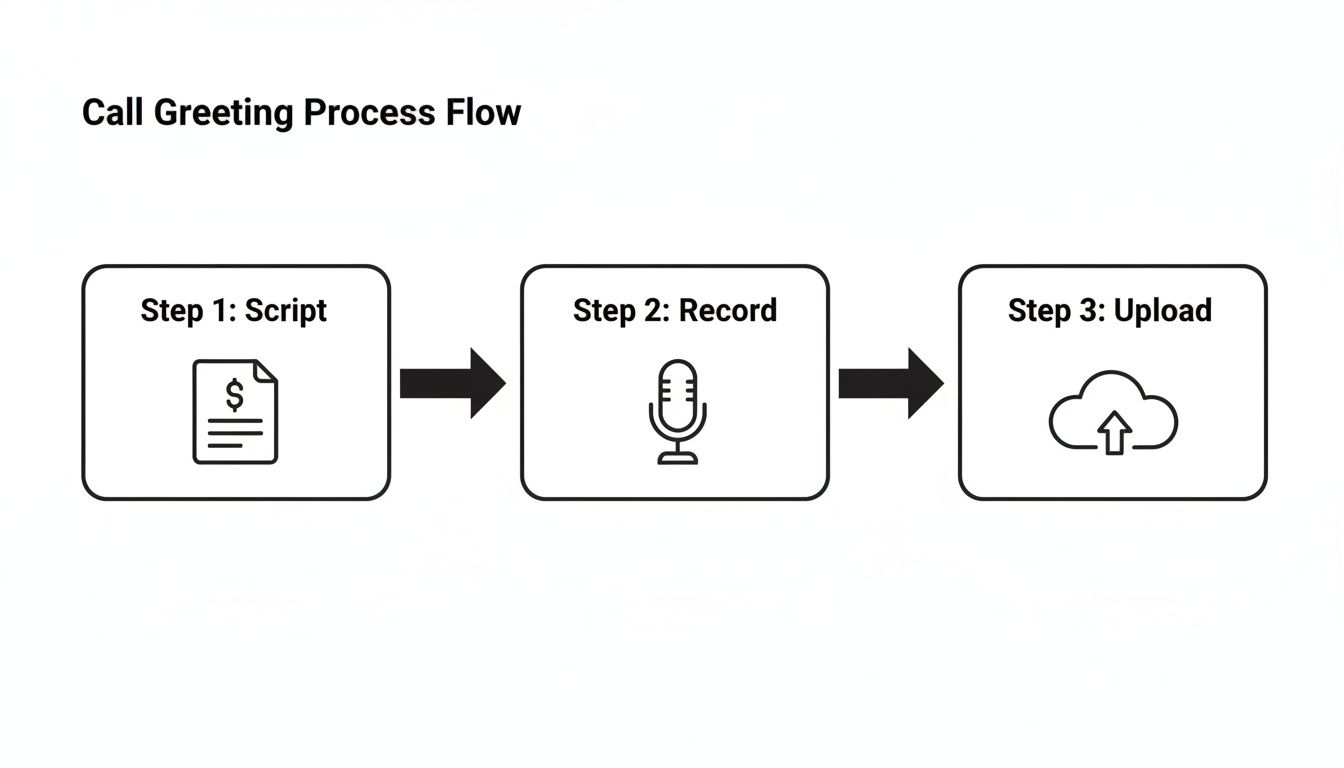
Getting your greetings ready is a simple three-step flow: script it, record it, and upload it. Following this workflow for both your main and after-hours messages ensures your brand sounds professional and consistent, no matter when a customer calls.
Advanced Optimization and Best Practices
Getting your Google Voice auto attendant up and running is just the beginning. The real goal is to refine it from a basic call-routing machine into a genuinely smart and seamless part of your business. This is where we get into the details that separate a clunky phone menu from a professional-grade communication system.
One of the first tweaks I always recommend is enabling the dial-by-name directory. It is a small change. It makes a huge difference. It lets callers who already know who they are looking for bypass the menu entirely, which makes your small operation feel instantly more established and organized.
Just as important is setting up a fallback rule. I consider this non-negotiable. Think of it as your system's safety net. If a caller rings a specific person or group and gets no answer, the fallback rule kicks in and sends them to a final destination, like a general voicemail. It ensures no caller ever falls through the cracks and hits a dead end.
Using Data to Refine Your Call Flow
Do not just set up your auto attendant and forget it. Your Google Voice call logs are a treasure trove of information. They show you precisely how people navigate your system. You need to get into the habit of reviewing them.
Are most people calling for the same reason? Are they getting stuck and timing out? The data tells a story.
For example, I worked with a client whose logs showed that 70% of callers were pressing '2' for customer support. Meanwhile, only 10% ever pressed '4' for billing inquiries. That is a clear signal. We simplified their main menu by moving the billing option under the support menu, making the initial greeting shorter and getting most callers to their destination one step faster.
This focus on voice interaction is more important than ever. We are seeing a massive shift in user behavior, with an expected 157.1 million people in the US using voice assistants by 2026. For businesses, this translates to auto attendants fielding a slice of over 1 billion voice searches every month. In some enterprise settings, AI now handles over 50% of calls, cutting down call handling time by an average of 35%. You can explore more about these voice usage statistics to see the full picture.
Integrating with Your Business Tech Stack
A truly optimized Google Voice automated attendant does not live on an island. The real power move is to connect it directly to the other tools you use to run your business.
This is where you move beyond simple call routing. You move into true business automation. Imagine a call comes in and is routed to your sales team. With the right integration, that single action can trigger a cascade of events:
- A new lead or task is automatically created in your CRM.
- A notification pops up in your team's Slack channel.
- The caller's phone number is added to a follow-up sequence.
This turns your phone system into an active player in your growth engine. For founders focused on efficiency, exploring other AI tools for business automation can reveal how to build a tightly integrated operation. Your auto attendant becomes one smart piece of a much larger, automated puzzle.
Common Questions (and Straightforward Answers)
Once you get your Google Voice auto attendant up and running, a few practical questions almost always pop up. I have seen them come up time and time again with small businesses. So let's tackle the most common ones head-on.
My goal here is to give you the clear, direct answers you need to sidestep those little hurdles and get your system working perfectly.
Can I Use My Existing Business Number?
Absolutely. Not only can you keep your existing business number, but in most situations, you really should. Your number is a core part of your business identity. Keeping it creates a seamless transition for your customers.
The process of moving your number over to Google Voice is called porting. To kick it off, you will need a copy of a recent phone bill from your current provider to prove you own the number. It can take a few business days. But it is well worth the wait. Once the port is complete, that number your customers already know will ring straight to your new auto attendant.
What Are the System's Limitations Compared to Enterprise Solutions?
This is a great question. It is all about setting the right expectations. While Google Voice’s auto attendant is a fantastic tool for most small and medium-sized businesses, it is not designed to be a massive, enterprise-grade contact center.
The biggest difference you will notice is in the menu structure. Google Voice is built around a single-level menu. You can have your main greeting ("Press 1 for Sales, Press 2 for Support") and even have an option that leads to a secondary menu, but it does not support the kind of deep, multi-layered phone trees you find in huge corporate systems.
Frankly, for a smaller business, this is usually a good thing. It nudges you toward simplicity.
Here’s a counter-intuitive take: for most small businesses, a single-level menu is a feature, not a bug. It prevents you from building the kind of frustrating, endless phone tree that drives customers crazy. Keeping it simple is almost always the better choice.
You should also know that it does not have native support for toll-free numbers or deep integrations with CRMs outside of the Google ecosystem.
How Do I Handle Voicemail for Different Departments?
Setting up separate voicemails for different teams is a smart move. It makes your business sound more established and keeps things organized. You definitely do not want sales leads and support tickets getting mixed up in one generic inbox.
The best way to do this is to create unique voicemail destinations for each department.
Here is the game plan:
- Create "Voicemail Users": Head over to your Google Admin console and create new users specifically for this purpose. Think "sales.voicemail" or "support.voicemail." You will need to assign a Google Voice license to each one.
- Update Your Call Routing: Go back into your auto attendant settings. Point the "Sales" option to ring the "sales.voicemail" user and do the same for your "Support" option, routing it to the "support.voicemail" user.
- Force Calls to Voicemail: The final touch is to log in as each of these new users and set their Google Voice status to "Do Not Disturb." This ensures calls go straight to voicemail without ringing endlessly.
With this setup, your sales team gets its own inbox to monitor. Your support staff gets theirs. It is a clean, simple, and scalable way to manage your inbound communications.
At Toolibrary, we help you cut through the noise and find the best AI tools to build and scale your business. Discover our curated directory to build your perfect tech stack. Find out more at https://toolibrary.co.